Wednesday, 27 June 2012

Basic Windows 8 Interface

Basic Windows 8 Interface
Microsoft’s Windows 8 has not been released to the public yet, but it’s been making lots of headlines lately. Many people were amazed at the promotions of Microsoft’s Surface, their very own tablet.


Also Read -
Things to know before upgrading to Windows 8
System Requirements For Windows 8

Of course, Microsoft has made a living with computers, so it’s no surprise that Windows 8 will be released on that platform.
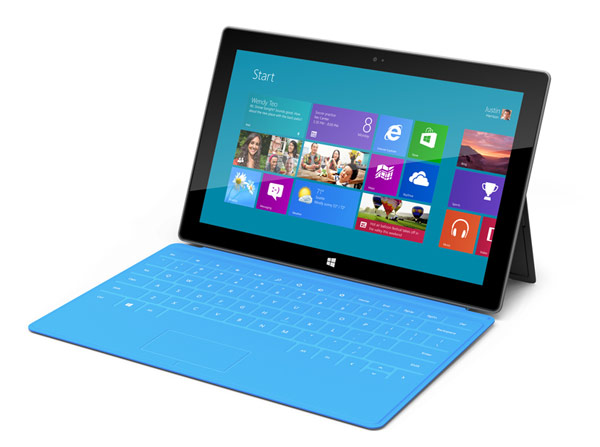
Basic Windows 8 Interface

That being said, should you be excited for Windows 8? Is Windows 8 even worth it at all? With so many computers still running on Windows XP (it’s over a decade old already!), it looks like Windows 8 may have a hard time converting older Windows users.


Selling your laptop for Windows 8 looks like a good idea at this time, because it needs some serious firepower. If your laptop doesn’t have power, you’re just not going to get it to work.
So what does Windows 8 have anyway?


Metro
Metro is probably the most advertised feature of Windows 8. If you’ve seen their Windows Phone, you’ll notice that the start page has square tiles where information is displayed and shortcuts to apps are easily accessed. This is called Live Tiles for Windows Phone, and Metro for Windows computers.


As the name implies, Metro is a station where all of your favorite stuff can be pinned for quick access. You can pin a frequently emailed contact for instant messaging, or you can pin certain websites for instant access when you fire up your computer.


You can also pin contacts for easy communicating such as chat or email. Basically, Metro works like widgets for Android. Information is displayed, such as unread emails and weather.


It’s a totally useful interface you’ll really like. Of course, you can switch to the traditional desktop view with a quick click in the corner.


Funny Unlock Screens
These days, unlock screens are being challenged to be more creative. In smartphones, you can jump straight to other apps!


With Windows 8, Microsoft takes a very unique approach to the subject with picture lock.
Picture lock works by choosing a photo of your choice. Once you’re done with that, you are required to make three gestures to unlock the screen. It’s really cool! You can draw a house beside a picture of a tree or do other stuff. You need three gestures to enter.


Of course, you’re also given traditional ways of unlocking your computer. You can enter a password or type in a PIN.


Picture lock though, is definitely one of the coolest things Microsoft has come up with.


Charms
Charms is a small menu found on the right that you can bring up when you need something done. For example, if you need to search for a file, you can just bring it up. Charms also gives you access to settings and other system related functions for easy access. It’s like the taskbar of Windows.


Conclusion
These three basic interface features will surely bring out the fun when it comes to using a computer. Microsoft has finally found a balance between practicality and aesthetics when it comes to creating cool software.


When Windows 8 comes out, it’ll be everyone’s favorite.


Author: Mikaela Taylor is an aspiring blogger and now content writer for Cashforlaptops.com – where you can sell your laptop while at the same time reducing tech waste.

Wednesday, 20 June 2012

Windows 8 Phone OS - 8 Amazing Features Review

Microsoft have unveiled their latest mobile operating system, without considering the previous owners of Windows phones.The new Windows Phone 8 operating system has 8 new features that wont be available on older Windows Phones, but will be available only on the new handsets, or the next generation of windows phones.

Here are the 8 Amazing Features of the Windows Phone 8 Operating System -


First Amazing Feature of the Windows Phone 8 - More Resolution Options:


Windows Phone 8 - More Resolution Options

The new Windows Phone 8 Operating System supports three different resolutions - 
  • 1280×768
  • 1280×720
  • 800×480
This will allow for even lower end phones to be able to use the Windows Phone 8 Operating System.

Second Amazing Feature of the Windows Phone 8 - Shared Core:

Windows Phone 8 - Shared Core

This is the single reason why the older Windows Phones cannot accommodate the Windows Phone 8 Operating System, the core of both the mobile and computer versions are the same and hence developers can easily develop apps that are usable both on the computer carrying Windows 8 as well as a mobile phone carrying Windows Phone 8 Operating System.

Third Amazing Feature of the Windows Phone 8 - NFC:
NFC or Near Field Communication can be used to tap cards, items etc to see digital details of whatever it is that is being tapped.NFC can also be used to tap other device which have NFC to set up a sync of sharing between the two devices.

Fourth Amazing Feature of the Windows Phone 8 - Flexible Tiles On Screen:
The screen with tiles can be customized to your preferences, the tiles of different colors can be re-sized to your needs.This allows users to be able to fit the information they need in the right places.This will also yield  a good variety of screens on different phones.

Fifth Amazing Feature of the Windows Phone 8 - Nokia Maps:

Windows Phone 8 - Nokia Maps

All the Windows Phone 8 Operating System phones will get Nokia Maps (offline versions) to aid in navigating step by step, it has been said that this is one of the best Nokia Maps yet and will prove to be very useful especially for those who travel a lot.

Sixth Amazing Feature of the Windows Phone 8 - Internet Explorer 10:

Windows Phone 8 - Internet Explorer 10

The Windows Phone 8 Operating System comes with the latest and greatest version of Internet Explorer - IE10.This will aid in seamless browsing at good speeds without lags.

Seventh Amazing Feature of the Windows Phone 8 - Memory Card
The Windows Phone 8 Operating System allows for a Memory Card to be set up, this memory card can be a MicroSD card.Users can easily expand their memory through this, they can store music, videos etc on the external storage, they can even install applications and software on the external MicroSD card.

Eighth Amazing Feature of the Windows Phone 8 - Wallet:

Windows Phone 8 - Wallet

The Windows Phone 8 Operating System Wallet feature allows users to keep a track on all of their financial aids such as Credit Cards, Debit Cards, Net Cards and Coupons etc.They can use this Wallet feature to pay for stuff bought using Tapping.

Saturday, 2 June 2012

Things To Know Before Upgrading to Windows 8

We recently wrote about how you can upgrade to windows 8 by paying just Rs.699 when you have a newly bought and valid Microsoft Windows 7 installed on your computer.You are probably excited that you are getting a new operating software, but there are several things you should know before you download and install the latest version of Windows, Windows 8.

Here are a few things you should keep in mind before downloading and upgrading to Windows 8-

System Requirements for Windows 8 - Gives the minimum specs and features that your computer or laptop should have before installing Windows 8.With Specs like those it is more likely that most people will not have sufficient system requirements to run Windows 8 optimally and nut just minimally.


Windows 8 Download - ISO or Setup File? The Windows 8 Download Page gives you two options to download Windows 8 onto your computer or laptop, they are -

Dowloading a ISO of Windows 8
Downloading the Setup File for Windows 8


If you are planning to have two operating systems on your computer (dual boot), or you want to upgrade from an older version of Windows such as Windows 7, you can choose the Setup File option for downloading and installing Windows 8.

If you are installing Windows 8 afresh, then you might lose some or all of your applications on your hard-drive, if you are just upgrading to Windows 8, then you will not lose any files.

See when you should Install Windows 8 Using ISO.

Will all your Pre-Installed Software and Programs run on Windows 8? See whether or not your pre-installed software and programs (which were perfect for your previous operating system) will work or not, with Windows 8 here.

How Should I install Windows 8?
You can install Windows 8 on your computer in three different ways, each one suiting the needs and setup capabilities of different people, so here are the three ways to Install Windows 8 on your computer or laptop-

Install Windows 8 as a virtual machine.
Install Windows 8 as a Dual Operating System.
Install Windows 8 as a Primary Operating Software.


We will soon put up tutorials on Installing Windows 8 as a Virtual Machine and as a Primary Operating Software.

I hope this tutorial on Things To Know Before Upgrading to Windows 8 was helpful to you, if you have any doubts or problems, please ask through the comment box.

When to use the Windows 8 ISO Option for Download and Installation

When to use the Windows 8 ISO Option for Download and Installation
  1. If Your laptop or computer has an x64 processor and is running the 32-bit version of Windows. If you would wish to download and install the 64-bit version of Windows 8, then you should definitely opt for downloading the 64-bit ISO.
  2. If You want to install Windows 8 on your Mac (iMac or Macbook, basically Apple Products) using Boot Camp software.
  3. If you have many computers at your home or you want to install Windows 8 on all your computers at your workplace, then you can download the ISO once, create a bootable DVD and boot the other systems using this bootable DVD.
  4. You plan to run Windows 8 as a Virtual Machine inside your existing copy of Windows.
  5. You are running Windows XP and not Windows 7.
Read - Things To Know Before Installing Windows 8
Installing Windows 8 alongside Windows 7.

System Requirements For Windows 8

If you are planning to install Windows 8 on your computer, first you must make sure that you have all the system requirements to do so, else the installation will not work or you will face problems with the OS.You must ensure that you have at-least the minimum specs required to run Windows 8 before installing.Also read - Things To Know Before Installing Windows 8.

1 GB of RAM
16 GB of hard disk space
1 GHz processor
Minimum RAM - 2 GB if you want to install the 64-bit version of Windows 8.

Also read - Installing Windows 8 Alongside Windows 7.

Computer Not Re-Booting From Windows 8 DVD?

During the process of installation of Windows 8 alongside Windows 7 in a dual-boot partition method, you may experience this problem that when you reboot your computer to start the installation process of Windows 8 after the completion of Partition of Storage.

There is a simple solution to this problem.

You need to first open the BIOS settings, then press F2 or F12 or Delete key while booting and one of these keys will work and enable the rebooting of your computer during the installation.Another thing you can do to solve this problem is to Switch to the Boot menu in BIOS settings and here you can easily set CD-ROM as the first device in the boot order.This will ensure that your computer boots.

Read - Things To Know Before Installing Windows 8
Installing Windows 8 alongside Windows 7.

Upgrade To Windows 8 For Rs.699

Did you purchase a new laptop or desktop with Windows 7 software recently and now you feel that you have made a mistake as Windows 8 is just around the corner? Do not fret as you are not undergoing any type of loss.Sometimes one cannot wait for new software or hardware to come out as time is precious and there are always upgrades and new software coming out every month, so the wait is just one long loop.So it makes sense that when you buy something, you buy the best available at that time and right now Windows 7 is your best option.Windows 8 will release soon in India and after the release, you do not need to regret spending a lot of money on Windows 7 OS as Microsoft has made a work around for that by offering an update to Windows 8 for those who have recently bought a new Windows 7 OS.

Upgrade To Windows 8 For Rs.699If you buy a PC or laptop with original versions of Windows 7 Home Basic, Home Premium, Professional or Ultimate which has a valid OEM Certificate of Authenticity (COA), then Indian consumers are entitled to a downloadable upgrade to Windows 8 Pro for a price of just Rs. 699, a small price to pay for a big improvement in Operating Software.

Windows 8 Off-The-Shelf can cost you anywhere between Rs 7000 To Rs 9000 (Prices Not Revealed Yet).So Rs699 is literally a steal.

The Chief Marketing Officer of Microsoft had this to say -
The Windows Upgrade Offer gives people the flexibility to purchase the new Windows PC they need today, with the knowledge they can easily upgrade to Windows 8 when it’s available.
You can Upgrade Your Windows To Windows 8 here. Read - Windows 7 Desktop Gadgets

Thursday, 17 May 2012

7 Desktop Gadgets that Windows 7 Users Should Know about

Desktop gadget is the first thing you see on your desktop: it has a lot of important and specific functions and at the same time it is compact and space-saving. In this article we would like to talk about Top 7 gadgets for Windows 7 which you desire to be on your desktop.

1. Mini TV

One way or another everyone needs to take some rest. So why not to do it right on your desktop with Mini TV gadget? There are numerous TV stations at your service so you are going to have a lot of options. You can watch your favorite programs both in full screen mode and in a compact gadget window.

2. Facebook Explorer

Facebook Explorer gadget will be a good helper for everyone who is registered in the Facebook social network. In a small window you will observe all the things that happen to you friends and to your own profile. Also you will be able to specify the updating settings and to change your status right on your desktop.

3. Traffic by Bing Maps

Very useful gadget for everyone who lives in the major metro area and who day by day suffers from the heavy traffic. With this small window on your desktop you will be aware of all the problems appeared along your route and have enough time to choose another road if necessary.

4. All CPU Meter

This gadget is the most appropriate one for Windows 7. With All CPU Meter it would be really easy to monitor the memory usage from your desktop. The outstanding advantages of this gadget are supporting up to eight cores and space saving function.

5. Windows Orb Clock

There is nothing about functionality. Only decent and good look. But be sure once installed Windows Orb Clock into your desktop you will never go back to your standard analog clock! Except for the desktop gadget you will also get a nice orb on your start menu.

6. Open/Close DVD

This gadget is urgent for you if your processor is situated in the hard-to-reach place and it might be a problem for you to press the button which opens a DVD drive door. After installing the Open/Close DVD gadget the only thing you should do is to click the button on your desktop! And there is only one problem you might face if you have two or more drives – the button will extend to all of them at the same time.

7. App Launcher

This gadget is a worthy alternative for lovely Quick Launch, which wasn't integrated into Windows 7. With its help you will gather all your favorite programs in one place, and this place will be your desktop! You will be able to place your App Launcher anywhere you want on your desktop, to change the background colors and to try different styles in the icons arrangement.

Recommended -


Author: The article was written by Andrew Smith, BugHuntress QA Lab. More information - on the company's website.Read our guidelines to be a Guest Author at TechGau.Org

Wednesday, 29 February 2012

Windows 8 Public Beta Released Today

Windows will release its latest edition of the operating software franchise, Windows 8, for public beta testing today, February 29/2012(Date subjective to which country you belong to) ahead of the Official Windows 8 release which is scheduled for the end of the year.This phase of beta testing by public will include partial versions of windows 8 being made available to the general public, so that they can test it and report any bugs or  problems with the OS to Microsoft.This phase will also allow enthusiasts to give feedback regarding any improvements in features of user interface.


What's New?
Here are some of the features of Windows 8 that are totally new -

  • ARM and x86 Hardware Versions
  • Alternate Metro UI
  • Touch-Friendly Apps


The Touch-Friendly Apps has been installed to enable more compatibility with touch based devices.This move has shown that Microsoft is serious about being a major player in the market of Tablets, something they do not have a strong foothold in, unlike the PC market.

Saturday, 18 February 2012

Windows Theme For Angry Birds Fans

Windows Theme For Angry Birds

If you are a big fan of Angry Birds, then you must get this new Windows Angry Birds Theme for your PC.The Theme comes with 6 desktop wallpapers of high resolution as well as a host of sound effects and mouse cursor effects to go with the wallpapers of birds and pigs.

When you switch off your computer you can hear the Angry Birds being as angry as ever and when you receive a new E-Mail, you can hear the lowly grunts of the dumb pigs.

So if you are an Angry Birds Fan, then you must get this theme.This theme works only on Windows 7, although I am working on a hack to make it available for both Windows Vista as well as the XP version.

Meet the Author

Gautham A S

Gautham A S is a personal tech columnist and blogging expert at TechGau.Org, one of the leading Tech, How-To and Blogging Tips blogs